- Moikas
- Posts
- How to Create Custom QR Codes with Stable Diffusion
How to Create Custom QR Codes with Stable Diffusion
Create Custom QR Codes with AI

Moikapy
June 22, 2023
So, this cool Reddit post had some sick QR codes made with Stable Diffusion. They used a custom-trained ControlNet model to make them.
QR code, which stands for Quick Response code, is a way to pack a lot of text or a URL into a 2D image. You can usually use your phone's camera app to scan it.
In this post, we'll show you how to make QR codes like the one below.

Installing
Alrighty, folks! So, for this example, we will use Comfy UI, a node-based Stable Diffusion GUI, to create custom QR codes. ComfyUI is available on Google Colab, Windows, and Mac.
ComfyUI has ControlNet support out of the box, so we won’t need to install any extensions.
Let’s install the required files for the tutorial:
Download the QR Code Controlnet Model and place it in ~\ComfyUI\models\controlnet
Download OrangeMix VAE to ~\ComfyUI\models\vae from https://huggingface.co/WarriorMama777/OrangeMixs/blob/main/VAEs/orangemix.vae.pt
Download our workflow from here and load it with ComfyUI.
Generate a QR Code
Alright, so first things first, we got to get ourselves a QR Code. Lucky for you, we have a super easy QR Code Generator for this tutorial. Check it out here.
Once you're on the page, you'll see a simple webpage with a QR code and a URL already in the input. Just delete that URL and replace it with whatever text you want. Then hit enter, and you're good to go!
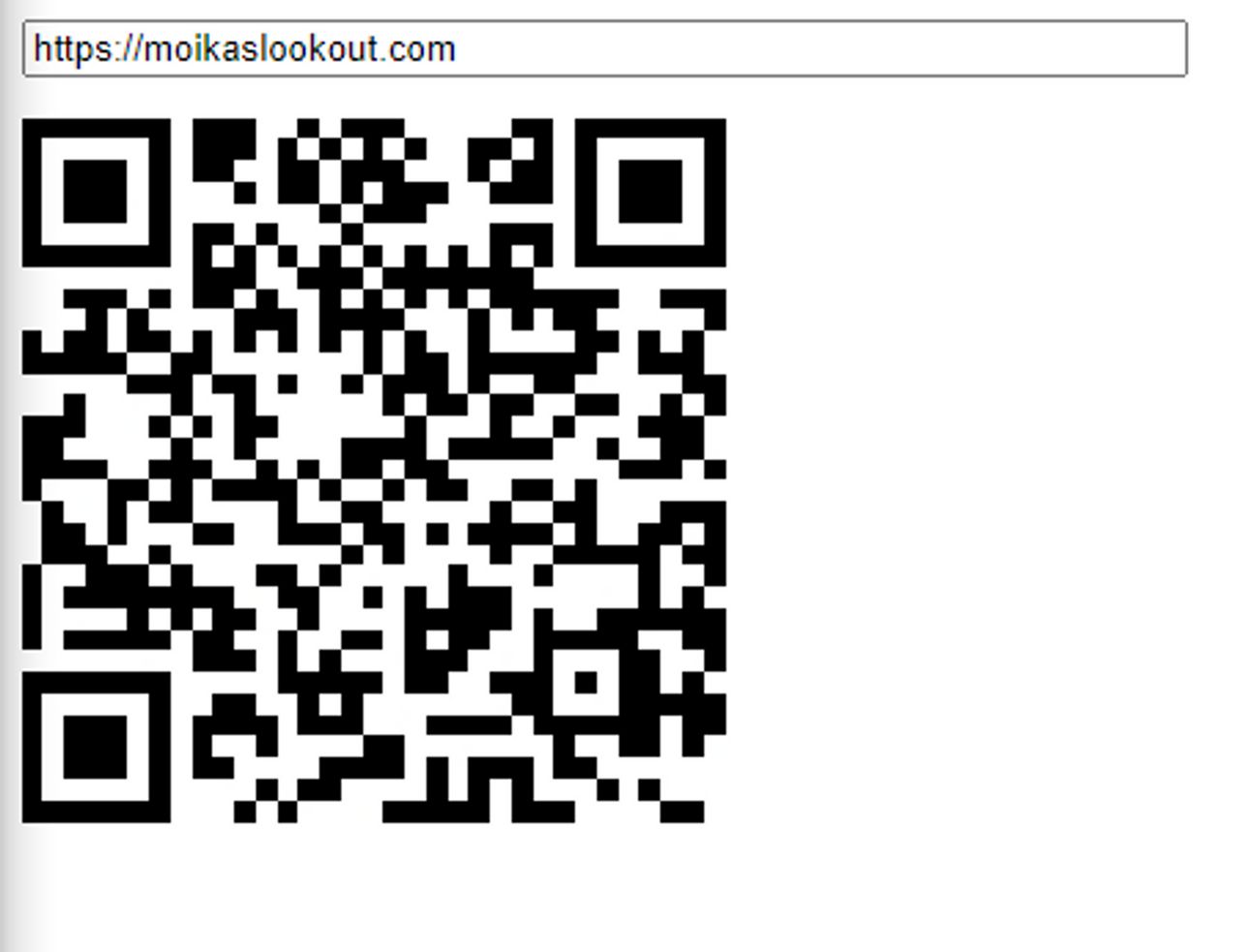
Once the QR code updates, right-click it and save it as an image.

I will drop the image into my favorite editor; I used Canva to resize it and give it a little padding.

Let’s Customize our QR code with Stable Diffusion and ComfyUI.
This process works by first generating an empty latent image and activating ControlNet during sampling, creating the preview image. This image is then upscaled and rerun through our sampler to undergo a hi-resfix along with ControlNet to strengthen the quality of the QR code and the rest of the image.
⚠ If you are using the Windows install above, double-click the run script, or follow the install instructions for your device.

Step 1: Load our QR Code Workflow and Select a checkpoint model.
We are using my model MoiMix.
Our workflow is a simple template for AI QRCodes

Step 2: Enter a prompt and a negative prompt.
Positive
A (Palm Tree), best quality, masterpiece, (absurd res) (detailed) with a qrcode
Negative
(nsfw:1.2), picture frame, (worst quality, low quality, bad quality, poor quality, extradigits:1.4), text, signature, logo, watermark, (embedding:easynegative:0.9), (embedding:veryBadImageNegative_v1.3:0.9)
Step 3: Upload your Image into the QR code node

Step 4: Press Queue Prompt

Step 5: Once the Image is generated, test the QR code. Make sure to check with different sizes on the screen and various devices. Some tend to have issues when they are large.
You won’t get a functional QR Code with every single image. Generate more images and check for the keepers.
Tips
QR codes are a fun way to put text or links in the picture, but not all codes work equally well. Keep the text short of ensuring your QR code works great.
QR codes work well for specific prompts, like creating snow-covered houses. They provide a consistent and visually appealing experience.
Custom QR codes can be created using Stable Diffusion and ComfyUI. Experiment with different models, workflows, and prompts to ensure the best look for the QR code.
Written By A Human using an Ai Assistant, powered using GPT-3.5 and NotionAI
Reply